Page background
26% OFF All Programs + Free All Addons
START26

SAVE WITH OUR EXCLUSIVE PROMOS

26% OFF All Programs + Free All Addons
Expires: 11th January 2026
START26
26% OFF All Programs + Free All Addons
Expires: 11th January 2026
START26
26% OFF All Programs + Free All Addons
Expires: 11th January 2026
START26
26% OFF All Programs + Free All Addons
Expires: 11th January 2026
START26
26% OFF All Programs + Free All Addons
Expires: 11th January 2026
START26
26% OFF All Programs + Free All Addons
Expires: 11th January 2026
START26
26% OFF All Programs + Free All Addons
Expires: 11th January 2026
START26
26% OFF All Programs + Free All Addons
Expires: 11th January 2026
START26
26% OFF All Programs + Free All Addons
Expires: 11th January 2026
START26
26% OFF All Programs + Free All Addons
Expires: 11th January 2026
START26
FAQs / All FAQs

All FAQs

Everything you need to know about our platform, evaluations and how to set up your FXIFY™ account.

Do you still need help?

Everything you need to know about our platform, evaluations and how to set up your FXIFY™ account.
FAQs
/
All FAQs
/
How Can I Customize the PnL Display on My TradingView Charts to Show Ticks, Pips, %, or Money?

How Can I Customize the PnL Display on My TradingView Charts to Show Ticks, Pips, %, or Money?


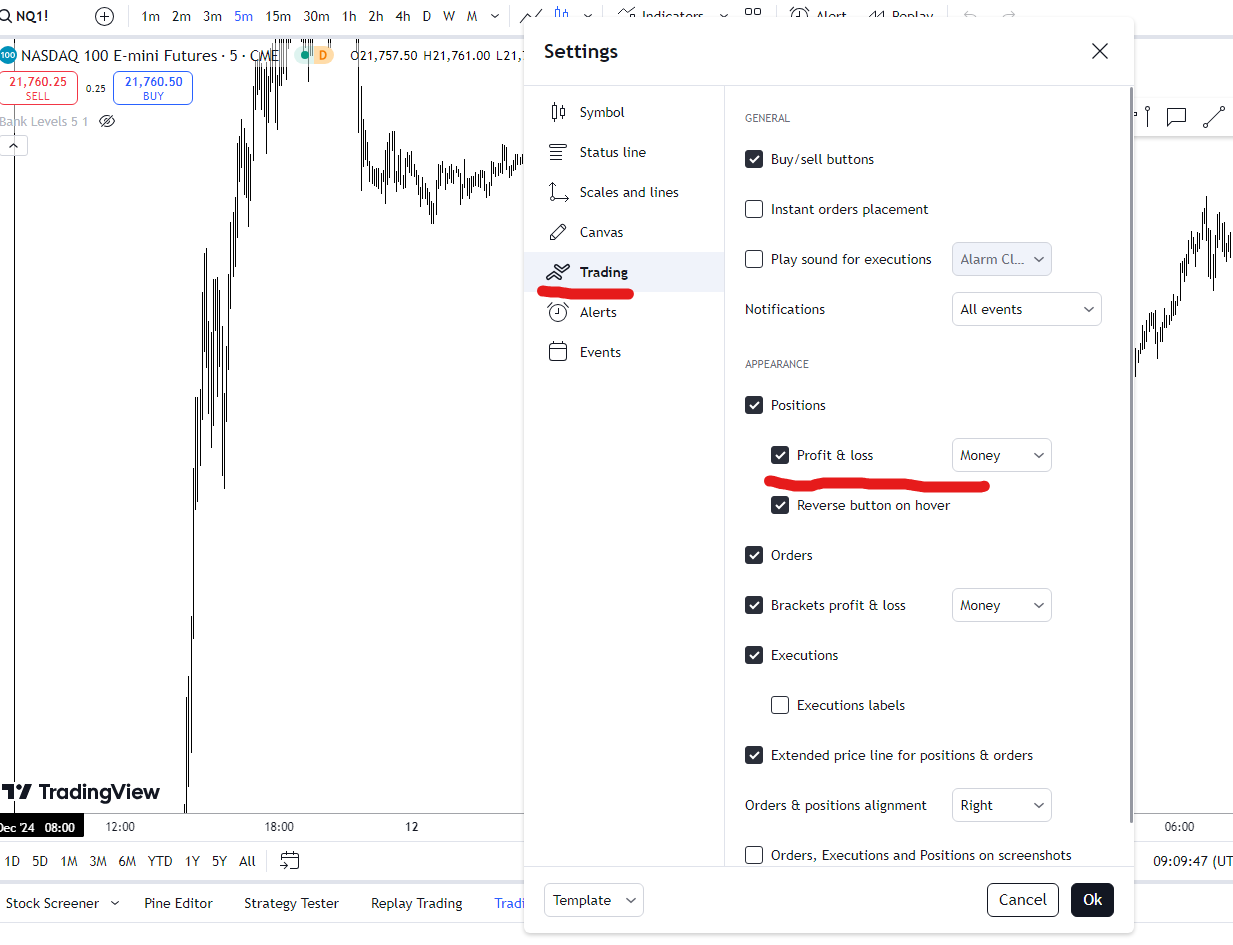
You can customize the PnL display on your TradingView charts to show ticks, pips, %, or money by adjusting the settings in the
Trading tab of the Chart settings window.

Here are the steps:

        1.   Right-click on the chart and select Settings, or click the settings wheel in the top right corner.

        2.   Click on the Trading tab within the Chart Settings window.

        3.   Under the Appearance label, find the Profit and Loss option.

        4.   Next to this option is a drop-down menu. By default, this is set to Money.

        5.   Select Ticks, Pips, or % to view the performance of a trade in the desired format.
Was this FAQ helpful?
YesNo

Do you still need help?

Everything you need to know about our platform, evaluations and how to set up your FXIFY™ account.