Page background
40% OFF One Phase Evals for New Users
NEW40
30% OFF All Programs (excl. Instant Funding Lite)
EASTER26

SAVE WITH OUR EXCLUSIVE PROMOS

40% OFF One Phase Evals for New Users
Expires: 30th April 2026
NEW40
30% OFF All Programs (excl. Instant Funding Lite)
Expires: 7th April 2026
EASTER26
40% OFF One Phase Evals for New Users
Expires: 30th April 2026
NEW40
30% OFF All Programs (excl. Instant Funding Lite)
Expires: 7th April 2026
EASTER26
40% OFF One Phase Evals for New Users
Expires: 30th April 2026
NEW40
30% OFF All Programs (excl. Instant Funding Lite)
Expires: 7th April 2026
EASTER26
40% OFF One Phase Evals for New Users
Expires: 30th April 2026
NEW40
30% OFF All Programs (excl. Instant Funding Lite)
Expires: 7th April 2026
EASTER26
40% OFF One Phase Evals for New Users
Expires: 30th April 2026
NEW40
30% OFF All Programs (excl. Instant Funding Lite)
Expires: 7th April 2026
EASTER26
40% OFF One Phase Evals for New Users
Expires: 30th April 2026
NEW40
30% OFF All Programs (excl. Instant Funding Lite)
Expires: 7th April 2026
EASTER26
40% OFF One Phase Evals for New Users
Expires: 30th April 2026
NEW40
30% OFF All Programs (excl. Instant Funding Lite)
Expires: 7th April 2026
EASTER26
40% OFF One Phase Evals for New Users
Expires: 30th April 2026
NEW40
30% OFF All Programs (excl. Instant Funding Lite)
Expires: 7th April 2026
EASTER26
40% OFF One Phase Evals for New Users
Expires: 30th April 2026
NEW40
30% OFF All Programs (excl. Instant Funding Lite)
Expires: 7th April 2026
EASTER26
40% OFF One Phase Evals for New Users
Expires: 30th April 2026
NEW40
30% OFF All Programs (excl. Instant Funding Lite)
Expires: 7th April 2026
EASTER26
FAQs / All FAQs

All FAQs

Everything you need to know about our platform, evaluations and how to set up your FXIFY™ account.

Do you still need help?

Everything you need to know about our platform, evaluations and how to set up your FXIFY™ account.
FAQs
/
All FAQs
/
How Do I Visualize A Company’s Financials On My TradingView Chart?

How Do I Visualize A Company’s Financials On My TradingView Chart?

TradingView lets you overlay a company’s key financial data directly on your chart. Here’s how to do it:

       1.  Select the stock you want to analyze.

       2.  Click on the “Financials” tab at the bottom panel (or find the “Metrics” icon in some views). If you are using a smaller screen, such as a laptop or mobile device, it may be under the “Indicators” tab.
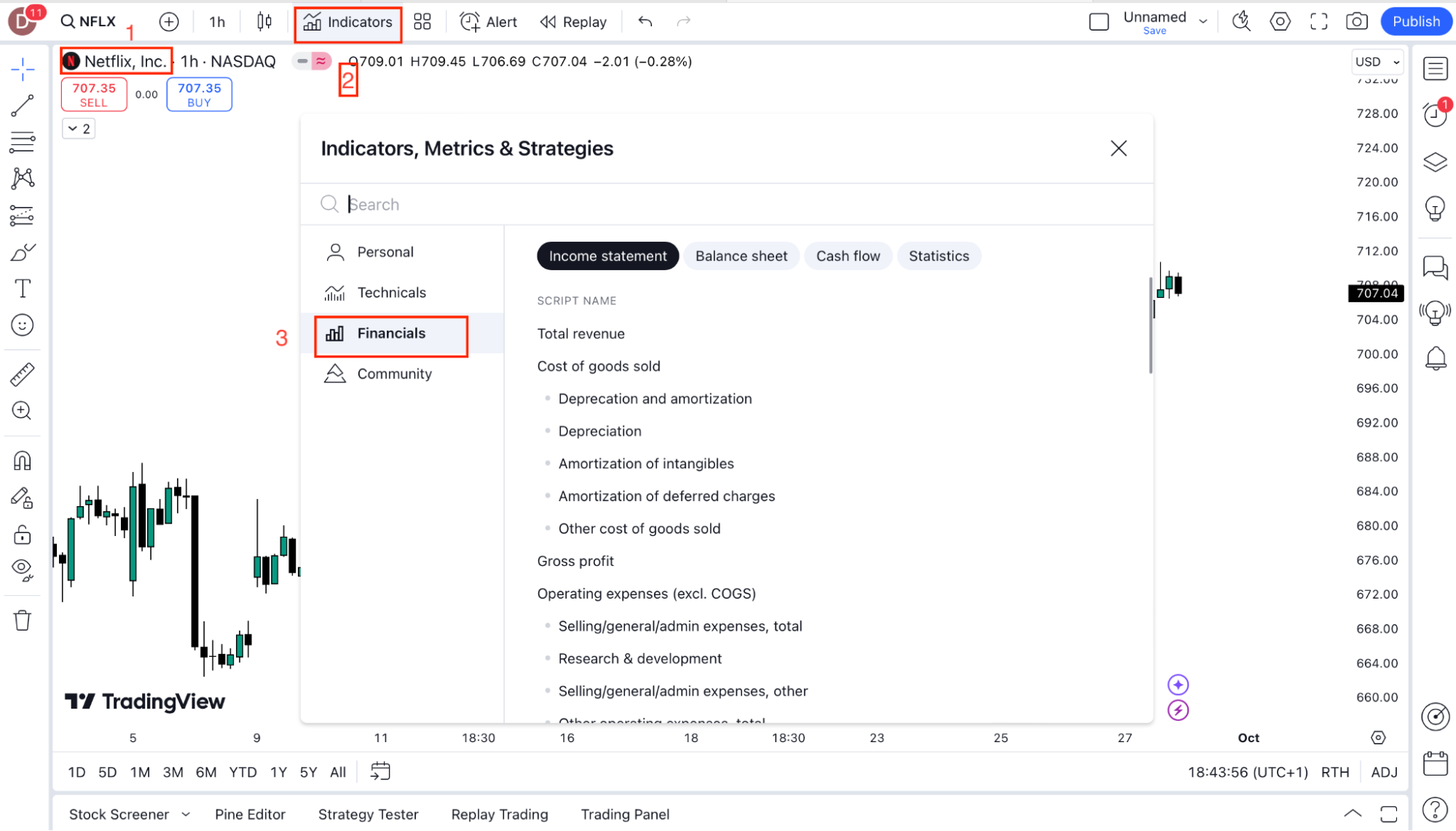
       3.   A panel will open with key data such as revenue, net income, and earnings per share (EPS). You can then add these metrics to your chart by clicking on them.

This feature helps you understand the company’s financial health alongside price movements.

Was this FAQ helpful?
YesNo

Do you still need help?

Everything you need to know about our platform, evaluations and how to set up your FXIFY™ account.
FXIFY x Alchemy Markets Live Session
Gold is Moving. Trade it like a Pro. April 8, 10:00 AM EST. Guest Speaker: Jeremy Wagner.