Page background
3rd Anniversary Sale - 33% OFF (excl. Instant Funding Lite)
FXIFY3

SAVE WITH OUR EXCLUSIVE PROMOS

3rd Anniversary Sale - 33% OFF (excl. Instant Funding Lite)
Expires: 31st May 2026
FXIFY3
3rd Anniversary Sale - 33% OFF (excl. Instant Funding Lite)
Expires: 31st May 2026
FXIFY3
3rd Anniversary Sale - 33% OFF (excl. Instant Funding Lite)
Expires: 31st May 2026
FXIFY3
3rd Anniversary Sale - 33% OFF (excl. Instant Funding Lite)
Expires: 31st May 2026
FXIFY3
3rd Anniversary Sale - 33% OFF (excl. Instant Funding Lite)
Expires: 31st May 2026
FXIFY3
3rd Anniversary Sale - 33% OFF (excl. Instant Funding Lite)
Expires: 31st May 2026
FXIFY3
3rd Anniversary Sale - 33% OFF (excl. Instant Funding Lite)
Expires: 31st May 2026
FXIFY3
3rd Anniversary Sale - 33% OFF (excl. Instant Funding Lite)
Expires: 31st May 2026
FXIFY3
3rd Anniversary Sale - 33% OFF (excl. Instant Funding Lite)
Expires: 31st May 2026
FXIFY3
3rd Anniversary Sale - 33% OFF (excl. Instant Funding Lite)
Expires: 31st May 2026
FXIFY3
FAQs / All FAQs

All FAQs

Everything you need to know about our platform, evaluations and how to set up your FXIFY™ account.

Do you still need help?

Everything you need to know about our platform, evaluations and how to set up your FXIFY™ account.
FAQs
/
All FAQs
/
How to Change the Background Color on TradingView?

How to Change the Background Color on TradingView?

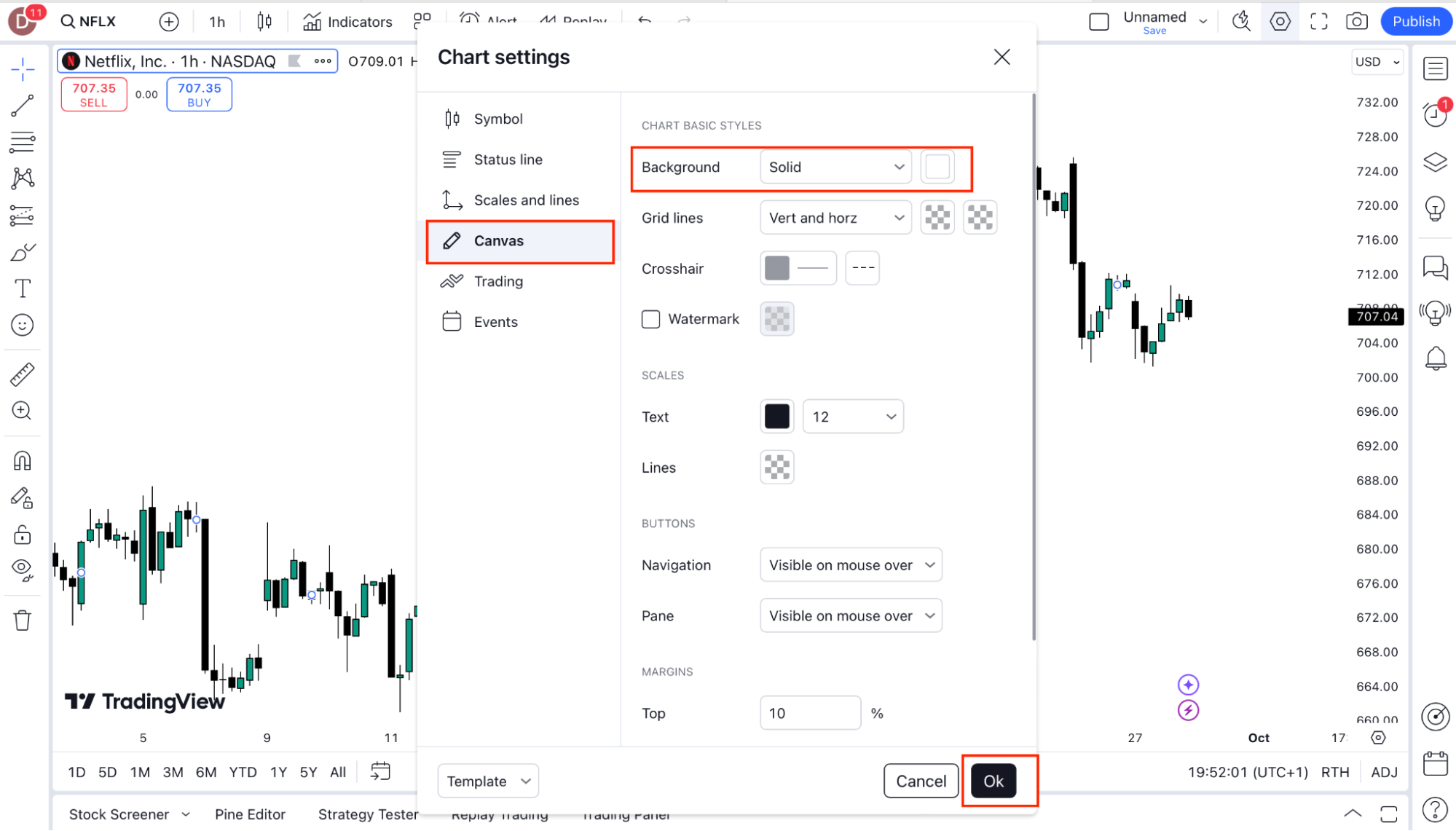
To change the background color of your chart:

        1.   Right-click on the chart and select “Settings”.

        2.   In the settings menu, go to the “Canvas” tab.
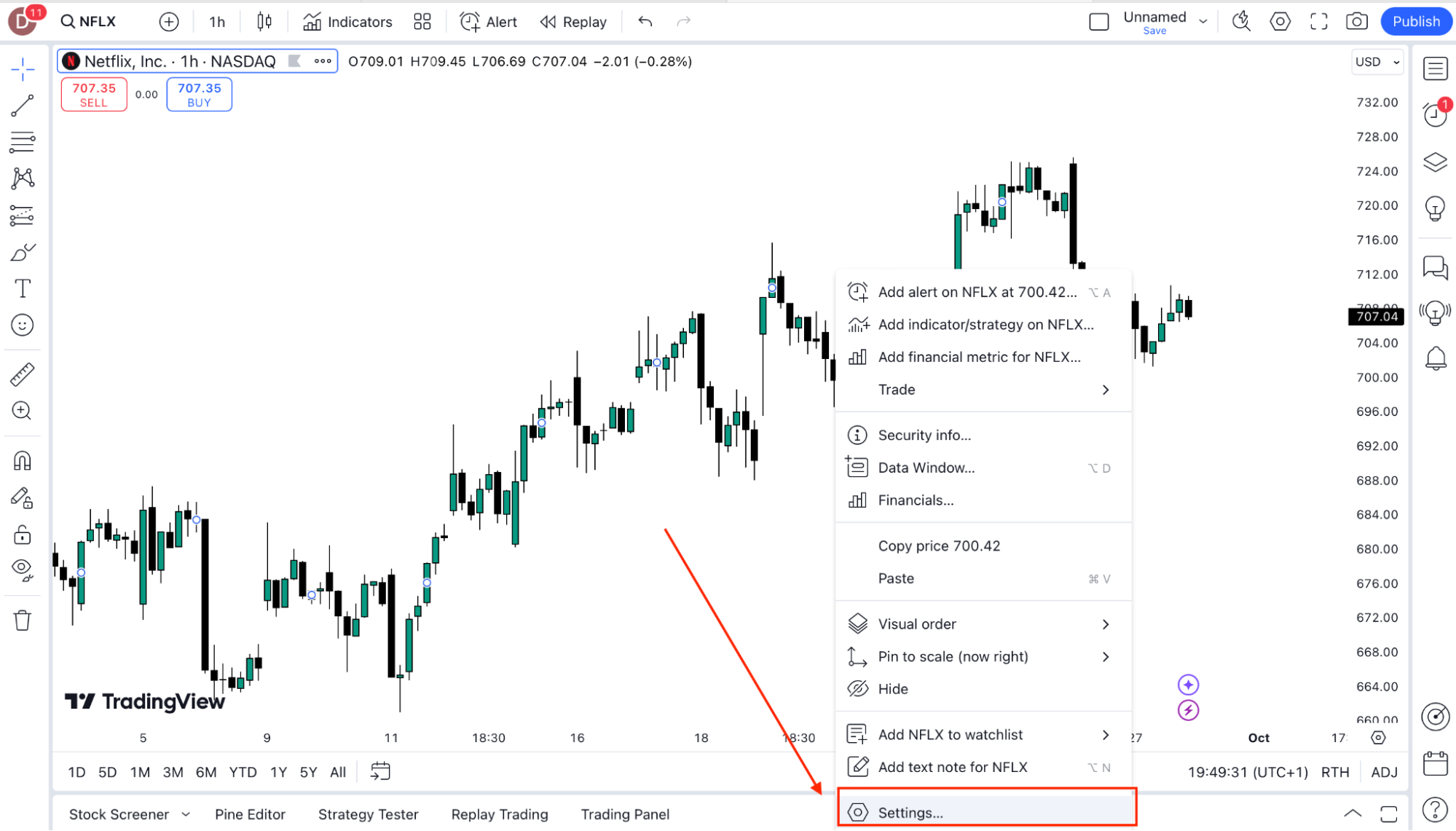
        3.   Under the Background section, choose your preferred color from the color picker.

        4.   Click “OK” to save your changes.


Was this FAQ helpful?
YesNo

Do you still need help?

Everything you need to know about our platform, evaluations and how to set up your FXIFY™ account.
FXIFY Anniversary
Buy any account before May 31 to enter and win a free challenge account up to $250K.
FXIFY Anniversary