Page background
30% ALL PROGRAMS + 2 FREE ADDONS
30PLUS2

SAVE WITH OUR EXCLUSIVE PROMOS

30% ALL PROGRAMS + 2 FREE ADDONS
Expires: 31st March 2026
30PLUS2
30% ALL PROGRAMS + 2 FREE ADDONS
Expires: 31st March 2026
30PLUS2
30% ALL PROGRAMS + 2 FREE ADDONS
Expires: 31st March 2026
30PLUS2
30% ALL PROGRAMS + 2 FREE ADDONS
Expires: 31st March 2026
30PLUS2
30% ALL PROGRAMS + 2 FREE ADDONS
Expires: 31st March 2026
30PLUS2
30% ALL PROGRAMS + 2 FREE ADDONS
Expires: 31st March 2026
30PLUS2
30% ALL PROGRAMS + 2 FREE ADDONS
Expires: 31st March 2026
30PLUS2
30% ALL PROGRAMS + 2 FREE ADDONS
Expires: 31st March 2026
30PLUS2
30% ALL PROGRAMS + 2 FREE ADDONS
Expires: 31st March 2026
30PLUS2
30% ALL PROGRAMS + 2 FREE ADDONS
Expires: 31st March 2026
30PLUS2
FAQs / All FAQs

All FAQs

Everything you need to know about our platform, evaluations and how to set up your FXIFYâ„¢ account.

Do you still need help?

Everything you need to know about our platform, evaluations and how to set up your FXIFYâ„¢ account.
FAQs
/
All FAQs
/
How to connect a trading account to TradingView

How to connect a trading account to TradingView


Connect Your Broker Account:

  • Log in to TradingView: Open the TradingView platform and log in to your account.
  • Open a Chart: Navigate to any chart on the platform.
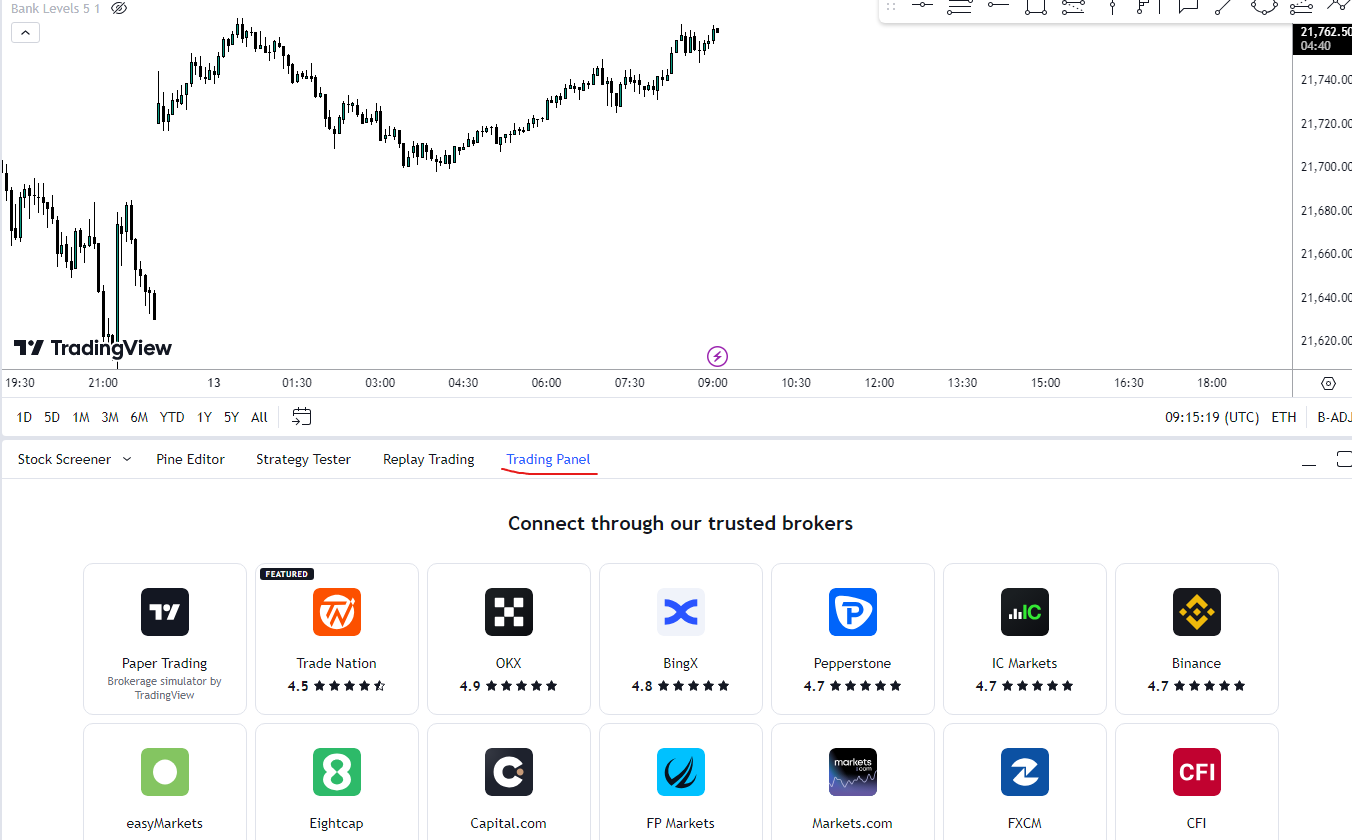
  • Access the Trading Panel: Look for the “Trading Panel” tab, usually located below the chart.
  • Select Your Broker: Click on the “Connect” button and choose your broker from the list.

Authorize Connection: Follow the prompts to authorize the connection between your broker account and TradingView. This might involve logging into your broker’s account or providing necessary credentials.
 

Was this FAQ helpful?
YesNo

Do you still need help?

Everything you need to know about our platform, evaluations and how to set up your FXIFYâ„¢ account.
FXIFY x Alchemy Markets Live Session
Gold is Moving. Trade it like a Pro. April 8, 10:00 AM EST. Guest Speaker: Jeremy Wagner.